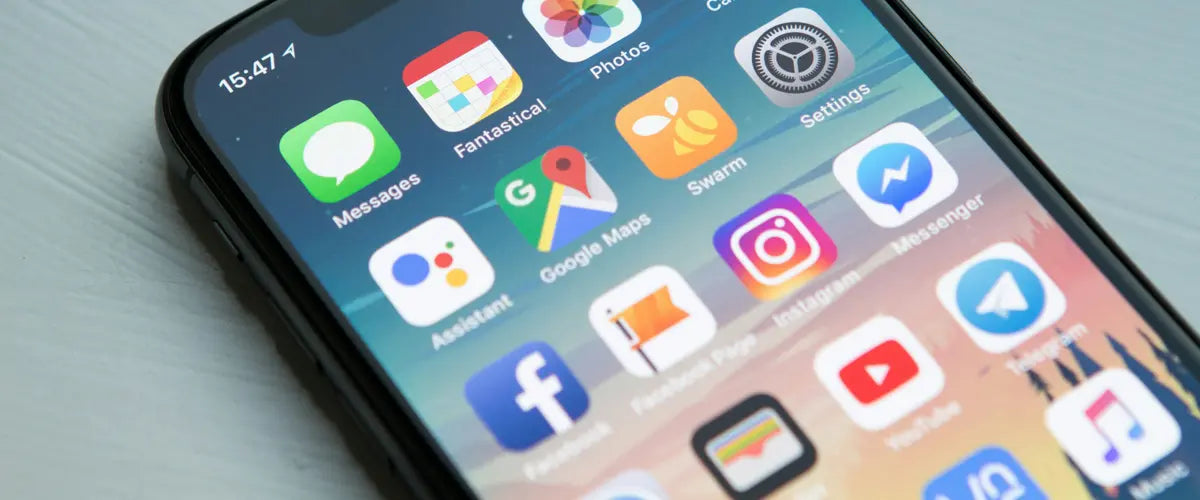
If you only use your iPhone for maps and the camera while traveling, you're leaving a lot on the table. Apple has quietly added dozens of features designed for trips abroad, and most of them are buried in menus you'd never think to open. We've pulled together twelve of the most useful, from instant translations to one-tap luggage tracking, with clear steps to get them set up before you fly.
- Apple Wallet for boarding passes
- Camera-based live translation
- Offline Apple Maps
- Notes app document scanner
- Find My for luggage and devices
- eSIM for affordable data abroad
- Travel Focus mode
- Personal Hotspot
- Check In safety feature
- Flight detection in Messages
- Low Data Mode
- Visual Look Up and currency conversion
01Apple Wallet for boarding passes
Skip the inbox scramble at security
The single biggest stress saver at any airport. Adding your boarding pass to Apple Wallet means it's one tap away from your lock screen, often appearing automatically near departure time without you having to do anything. No more digging through emails with one hand while balancing a coffee in the other.
- Open the confirmation email or PDF from your airline.
- Look for the "Add to Apple Wallet" button, or tap the share icon and choose Wallet.
- Tap Add in the top corner to save it.
02Camera-based live translation
Point, read, understand
Menus in Spanish, road signs in Thai, washing instructions on a hotel laundry tag. Your iPhone camera can translate any text you point it at, in real time, without opening a separate app. It's the kind of thing that feels like magic the first time you try it and then quickly becomes the feature you reach for daily.
- Open the Camera app and frame the text.
- Wait for the Live Text icon to appear in the bottom right corner, then tap it.
- Tap Translate and pick your language.
The same trick works inside Photos. If you've already taken a photo of a menu, open it and tap the Live Text icon to translate after the fact.
03Offline Apple Maps
Turn-by-turn directions with zero signal
Roaming charges or patchy coverage shouldn't be the reason you get lost. Apple Maps now lets you download entire cities or regions to your phone, complete with turn-by-turn navigation, search, and place details, all working without a single bar of signal.
- Open Maps and tap your profile picture in the search bar.
- Choose Offline Maps, then Download New Map.
- Search the city or region, drag to adjust the area, then Download.
04Notes app document scanner
A pocket scanner for your passport and tickets
Losing a passport abroad is one of those nightmares that gets dramatically less stressful if you have a clear digital copy stored somewhere. The Notes app has a built-in scanner that produces sharp, properly cropped PDFs of any document, no third-party app required.
- Open Notes and start a new note.
- Tap the camera icon and choose Scan Documents.
- Hover over the document, your iPhone will auto-capture when aligned.
- Tap Save, then share the resulting PDF to email or Files for backup.
We'd recommend scanning your passport, travel insurance certificate, driver's license, and any visas before you fly. Email a copy to yourself and save another to iCloud, so you have access from any device.
05Find My for luggage and devices
Track everything, lose nothing
Apple's Find My network is one of the most useful things on an iPhone for travelers. Pair it with an AirTag or two and you can see exactly where your checked luggage is, whether your bag actually made it onto the plane, and which carousel to head to when you land.
- Pair AirTags via Find My > Items > Add Item.
- Drop one in each checked bag, plus your daypack and wallet.
- Check the Find My app whenever you want to confirm where everything is.
06eSIM for affordable data abroad
Goodbye SIM cards, hello adventure
Every iPhone from the XS onwards supports eSIMs, and every iPhone sold in the US since the 14 series is eSIM only. That means you can install a local data plan in under a minute, without ever touching a physical SIM card or waiting in line at an airport kiosk.
- Buy your eSIM from SIMOVO before you travel.
- Open the QR code on a separate screen, or follow the in-app install option.
- Go to Settings > Cellular Data > Add eSIM and scan the code.
- Label it (something like Travel works well), and choose when to use it for data.
The big win here is dual SIM. You can keep your home number live for calls and texts on iMessage, while data runs over a cheap local plan. No more eye-watering bills when you get home.
07Travel Focus mode
Mute the noise, keep what matters
You don't need work Slack pings while you're hiking a volcano. Focus modes let you build a custom profile that silences certain apps and contacts but still lets through what you actually want, like flight alerts, family messages, and your booking confirmations.
- Open Settings > Focus, then tap the plus icon in the top corner.
- Choose Custom, give it a name like Travel, and pick a color.
- Set which People and Apps can break through.
- Add a schedule, or turn it on manually from Control Center.
[esim flag="🌍" label="Worldwide" data="120+ countries" price="from $9.20" href="/products/global" benefits="Instant QR setup · Local network rates · No roaming charges · Prepaid"]Stay connected wherever you go[/esim]
08Personal Hotspot
Share your data with your laptop or travel buddy
If you've got data on your iPhone, you can share it with any other device. Handy when the hotel Wi-Fi is unusable (it usually is), or when your travel partner's phone is offline and they need maps.
- Settings > Personal Hotspot.
- Toggle Allow Others to Join.
- Share the Wi-Fi password shown on screen, or just let the other Apple device connect via your Apple ID.
09Check In safety feature
Quiet peace of mind for solo travelers
Tucked inside Messages is one of the most underrated features Apple has shipped in years. Check In automatically lets a chosen contact know when you've arrived somewhere, and if you don't make it, it can share your location, route, and battery level so they can find you.
- Open Messages with the person you want to notify.
- Tap the plus icon, then More, then Check In.
- Pick when you expect to arrive, or set a timer for activities like a hike.
10Flight detection in Messages
Turn a flight number into a live tracker
This one is so simple it's almost annoying. Type a flight number into any message or note (like BA117 or AA42), and your iPhone underlines it. Tap it, and you get live status, gate, terminal, and a map showing where the plane currently is.
- In any text field, type the flight number with airline code, no space.
- Long press the underlined text.
- Choose Preview Flight.
Useful for sending pickup details to whoever is picking you up, and for quietly tracking a partner's flight without spending half an hour on FlightRadar.
11Low Data Mode
Stretch a small data plan further
If you're on a limited data plan or running low toward the end of a trip, Low Data Mode pauses background activity, reduces video and image quality, and stops apps refreshing constantly. It can easily double how long a plan lasts.
- Settings > Cellular Data > Cellular Data Options.
- Tap Data Mode and choose Low Data Mode.
- If you've got multiple SIMs, do this per line.
12Visual Look Up and instant currency conversion
Identify anything, convert anything
Two features bundled here because they overlap. Visual Look Up lets you point your camera at a landmark, plant, animal, or unfamiliar dish and get info on it. The same Live Text engine spots prices in foreign currencies in your photos and converts them automatically to your home currency.
- Open any photo in the Photos app.
- If a small icon appears (a leaf, paw, building, or stars), tap it for Visual Look Up.
- For currency: tap the Live Text icon, long press the price, and choose Convert.
Goodbye SIM cards. Hello adventure.
Combine these tricks with a SIMOVO eSIM and your next trip is genuinely friction-free. Pick a plan for your destination and install it in under a minute.
Browse SIMOVO eSIMsThe takeaway
Most of these features have been hiding in your iPhone for years. None of them require a download, a subscription, or any extra gear. Set up Wallet, Focus mode, Check In, and offline maps before your next trip, drop an AirTag in your bag, and install an eSIM, and you'll have removed about 80% of the friction people associate with traveling abroad.
The remaining 20% is mostly other people in airport lines, and unfortunately Apple hasn't shipped a fix for that one yet.